Your phone battery is probably one of those things you don't think about until it reaches 5 percent at the worst possible moment. Whether you're heading out for the day, traveling, working, or simply trying to make it through the evening, a battery that lasts longer can make everyday life much easier.
The good news is that you don't need complicated apps or expensive accessories to improve your phone's battery life. A few simple habits can reduce unnecessary power consumption and, just as importantly, help protect the battery's long-term health.
Modern smartphones already have many built-in battery-management features. The trick is knowing which habits actually matter and which popular battery tips aren't worth worrying about.

1. Reduce Your Screen Brightness
One of the simplest ways to save battery is to reduce how much power your screen uses.
Your display can be one of the biggest sources of battery consumption, particularly when you're watching videos, browsing websites, playing games, or using your phone for long periods.
You don't need to keep your screen extremely dim. Instead, use automatic or adaptive brightness when available and lower the brightness manually when you're indoors.
Google recommends reducing screen brightness or using automatic brightness as one way to reduce battery consumption on Android devices. (Google Help)


2. Make Your Screen Turn Off Sooner
Another small change that can make a difference is reducing your screen timeout.
If your phone stays illuminated for several minutes after you stop using it, that is wasted battery.
Try setting your screen to turn off after a relatively short period, such as 30 seconds or one minute, depending on your preferences.
This is especially useful if you frequently put your phone down without manually locking it.
You can usually find this option under Display or Screen settings.
3. Turn On Battery Saver When You Need It
Battery Saver or Low Power Mode is designed specifically for situations when you need your remaining charge to last longer.
On Android, Battery Saver can limit background activity and certain visual effects. On iPhone, Low Power Mode reduces or changes some activities to conserve energy. (Google Help)
You don't necessarily need to keep these modes enabled all day.
Instead, turn them on when you know you'll be away from a charger for several hours or when your battery starts getting low.
For example, if your phone reaches 20 percent and you still have a long evening ahead, Battery Saver can help stretch that remaining charge.
4. Check Which Apps Are Using the Most Battery


Sometimes the problem isn't your phone itself. It may be one particular app consuming an unusual amount of power.
Open your phone's battery settings and look at the battery-usage list.
You may discover that an app you rarely use is consuming significant power in the background.
On Android devices, Adaptive Battery and battery optimization can help reduce unnecessary background activity. Google says Adaptive Battery learns how you use your apps and can limit activity from apps you use less often. (Google Help)
On iPhone, the Battery settings can also help you understand which apps are responsible for battery consumption.
Don't automatically restrict every app, though. Some applications need background activity for notifications, location services, or other important functions.
Instead, investigate unusually high battery usage first.
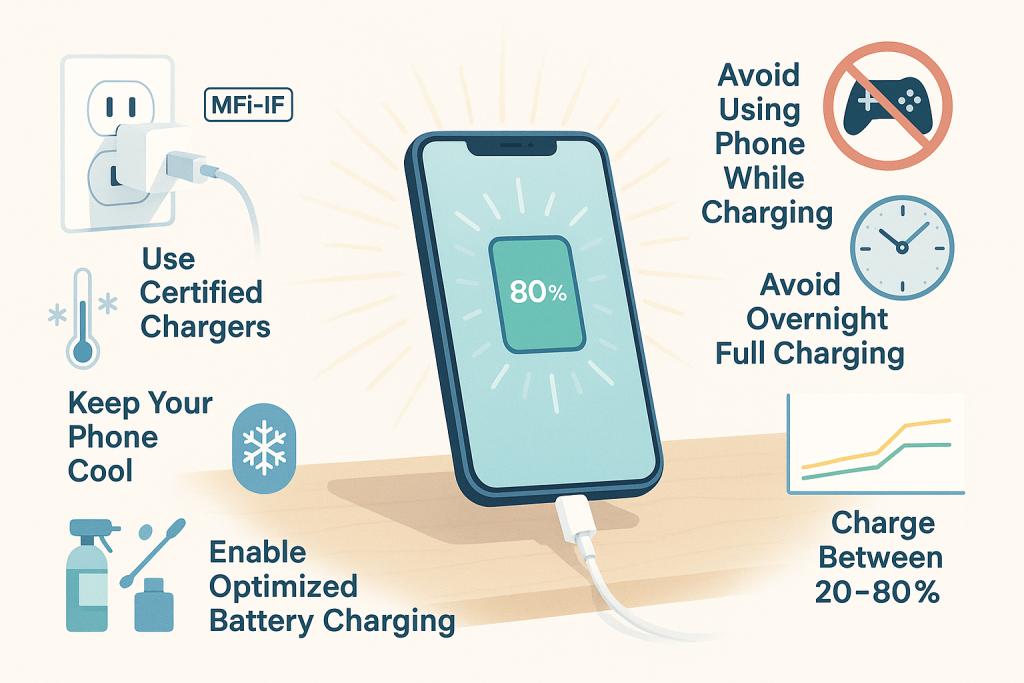
5. Keep Your Phone Cool
Heat is one of the most important things to avoid if you want to protect your battery over time.
Smartphone batteries don't like extreme temperatures. Apple specifically advises avoiding prolonged use or charging in ambient temperatures above 35°C / 95°F, because excessive heat can permanently reduce battery lifespan. (Apple Support)
Avoid leaving your phone:
- In direct sunlight
- On a hot car dashboard
- Under a pillow while charging
- Near a heater
- Inside a hot vehicle
Your phone may naturally become warm while charging or performing demanding tasks, but if it becomes unusually hot, give it a chance to cool down.


6. Don't Obsess Over Keeping It at Exactly 80 Percent
You've probably heard that you should always keep your battery between 20 and 80 percent.
There's some useful logic behind avoiding unnecessary time at very high charge levels, but you don't need to stress about hitting an exact percentage every day.
Modern phones have charging-management features designed to help protect battery health.
For example, supported iPhones offer Optimized Battery Charging and charge-limit options. Apple says these features reduce the amount of time the phone spends fully charged, which can reduce battery wear. (Apple Support)
Google Pixel phones similarly offer charging optimization, including an option to limit charging to 80 percent on supported devices. (Google Help)
The practical takeaway is simple: use your phone normally and enable your device's built-in charging optimization if it suits your routine.
7. Use a Good Charger and Cable
Your charger is another area where it's worth avoiding questionable accessories.
Google recommends using the power adapter supplied with the phone and notes that incompatible adapters can charge slowly or potentially damage the phone or battery. (Google Help)
That doesn't mean you can never use a third-party charger. Look for reputable, compatible products that meet your phone manufacturer's requirements.
Avoid damaged cables, loose connectors, or chargers that become unusually hot.
A reliable charger is a much better choice than saving a few dollars on an unknown accessory.
8. Turn Off Features You Aren't Using
You don't have to switch off every wireless feature to save battery.
Modern phones are designed to manage Wi-Fi, Bluetooth, and other connections efficiently. However, certain activities can consume substantial power.
For example, Google specifically identifies prolonged use of navigation, video streaming, gaming, mobile hotspots, and GPS as activities that can drain a battery more quickly. (Google Help)
If you're not using a mobile hotspot, turn it off.
If you're finished with navigation, close the navigation session.
If you're traveling and don't need cellular connectivity, Airplane Mode can be useful.
The goal isn't to constantly change settings. It's simply to avoid leaving high-power features running unnecessarily.
9. Reduce Heavy Gaming When Your Battery Is Low
Graphics-heavy games can put significant demands on your processor, graphics hardware, display, and network connection.
That combination can drain your battery quickly.
If you're already at 10 or 15 percent and need your phone to last for several more hours, consider avoiding demanding games and other intensive activities.
The same principle applies to long video sessions, camera use, navigation, and other processor-intensive tasks. Google recommends avoiding these types of activities when trying to stretch a low battery. (Google Help)
10. Don't Constantly Force-Close Every App
This is one of the most misunderstood battery tips.
Many people believe they should constantly swipe away every app from the recent-apps screen.
That's usually unnecessary.
Modern operating systems are designed to manage background applications themselves. On Android, Adaptive Battery and battery optimization are specifically designed to control background activity. (Google Help)
Instead of constantly closing everything, focus on apps that genuinely have unusually high battery usage.
11. Keep Your Software Updated
Software updates can include improvements to performance, power management, and battery optimization.
That doesn't mean every update will magically increase battery life. In fact, you may sometimes notice temporarily higher battery usage immediately after a major update while the phone performs background setup and optimization.
Google notes that Pixel devices can temporarily use more battery after a software update while the system finishes optimization. (Google Help)
So don't panic if battery usage changes for a short period after updating.
12. Check Your Battery Health Occasionally

There's an important difference between battery life and battery lifespan.
Battery life is how long your phone runs before needing another charge.
Battery lifespan is how long the battery remains capable of holding a useful amount of charge before it needs replacement.
Rechargeable lithium-ion batteries naturally lose capacity as they chemically age. Apple explains that factors such as temperature history and charging patterns affect battery aging. (Apple Support)
If your phone supports battery-health information, check it occasionally.
If you notice a dramatic decline in battery performance, unexpected shutdowns, or a battery that appears swollen, it's better to have the device inspected rather than trying to fix the battery yourself.
A Simple Daily Battery Routine
You don't need to remember a dozen rules.
A practical daily routine could look like this:
Morning:
Use automatic brightness and normal settings.
During the day:
Avoid unnecessary hotspot/GPS use and watch for apps with unusually high battery consumption.
While charging:
Keep the phone somewhere reasonably cool and use a compatible charger.
When battery is low:
Turn on Battery Saver or Low Power Mode and avoid demanding activities.
Over the long term:
Keep the phone cool and use built-in charging optimization where available.
That's enough for most people.
Final Thoughts
Extending your phone's battery isn't about following complicated rules or constantly checking the percentage.
The habits that matter most are surprisingly simple: reduce unnecessary screen use, keep the phone cool, monitor battery-hungry apps, use Battery Saver when needed, avoid excessive heat, and take advantage of your phone's built-in charging optimization.
You also don't need to panic when your battery reaches 100 percent or occasionally falls below 20 percent. Modern phones are designed to manage charging intelligently.
The goal is simply to avoid unnecessary stress on the battery while making the most of the charge you have.
A few small changes in your everyday routine can help your phone stay useful for longer — and may save you from reaching for the charger quite so often.